CapCut for PC

In the highly competitive world of video creation and editing, having the right tools can bring a lot of benefits for editors. However, you will find hundreds of editing software but not all are trustworthy. But above all these tools, CapCut for PC stands out due to its amazing and unique features. No matter what type of video you want to create, whether it's for social media or your personal TikTok account, CapCut for Windows helps you.

System Requirements

Version
v9.1.0.3879
Size
Last Update
Operating System
Windows 7 or above (Windows 10 recommended)
Processor
Intel Core i3 or above
RAM
4 GB or above
Graphic Card
Intel HD Graphics 4000 or above
Resolution
1280x800
Storage
2 GB available space or above
Overview

What is CapCut?

🔒
Simple & Powerful

Built for Every Editor

This amazing editing tool has a simple interface that makes it the best option for all types of video editors. Moreover, this app also offers hundreds of other amazing editing tools to make your videos smooth and professional looking. So, to explore all these features, you should download CapCut on your computer and start enjoying the editing process.

Key Features

Features of CapCut for Windows

Some of the amazing features of CapCut for computers are mentioned below.

CapCut for PC video editing tools
01
CapCut Dashboard

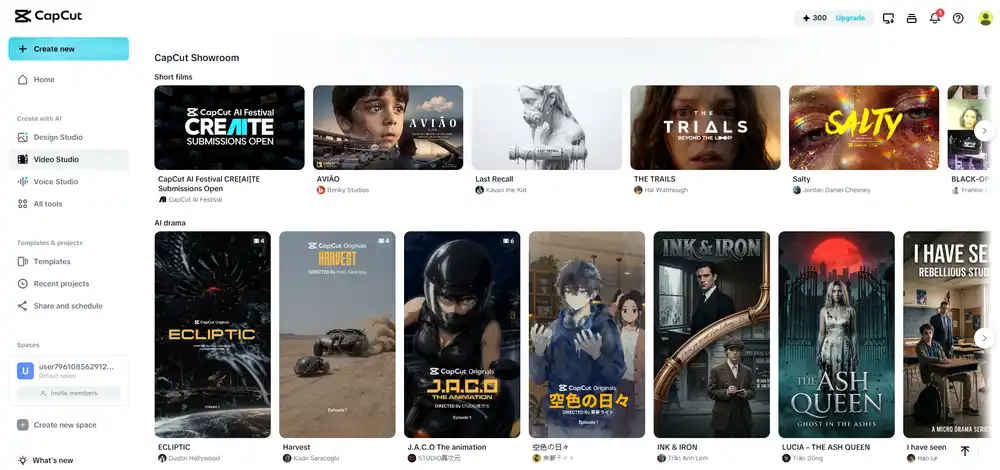
This interface is CapCut's main hub, built to get your creative juices flowing before you even start editing. The left sidebar gives you quick access to your creation tools—like the Video, Design, and Voice studios—while the main feed showcases top short films and AI-generated dramas from other creators to inspire your next project.
02
Inside the CapCut Video Editor

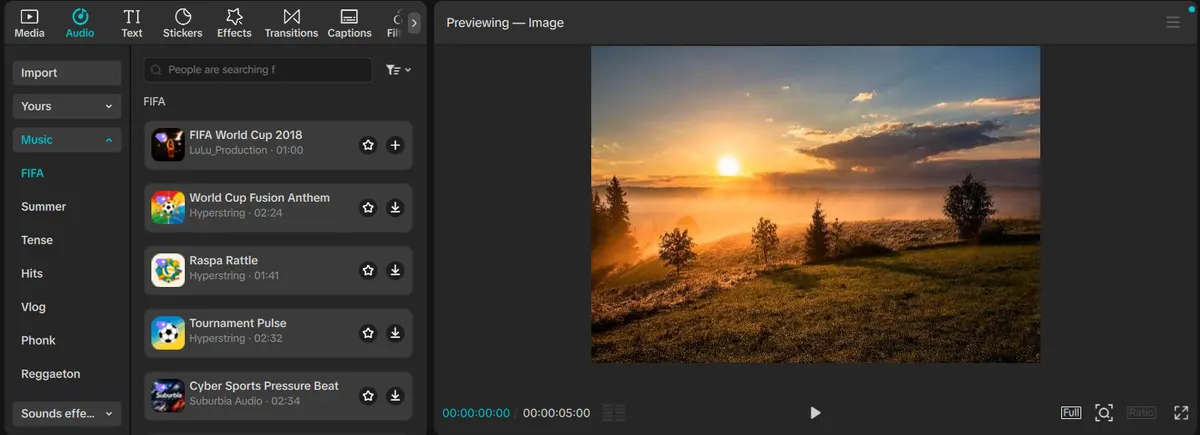
This view drops you right into the core editing workspace, featuring the asset library on the left alongside a large video preview window on the right. The audio section lets you browse, search, and download stock music or sound effects across various genres to easily preview how they sync up with your visuals in real time.

CapCut for PC audio shaping tools
CapCut for PC user-friendly interface
03
User-Friendly Interface

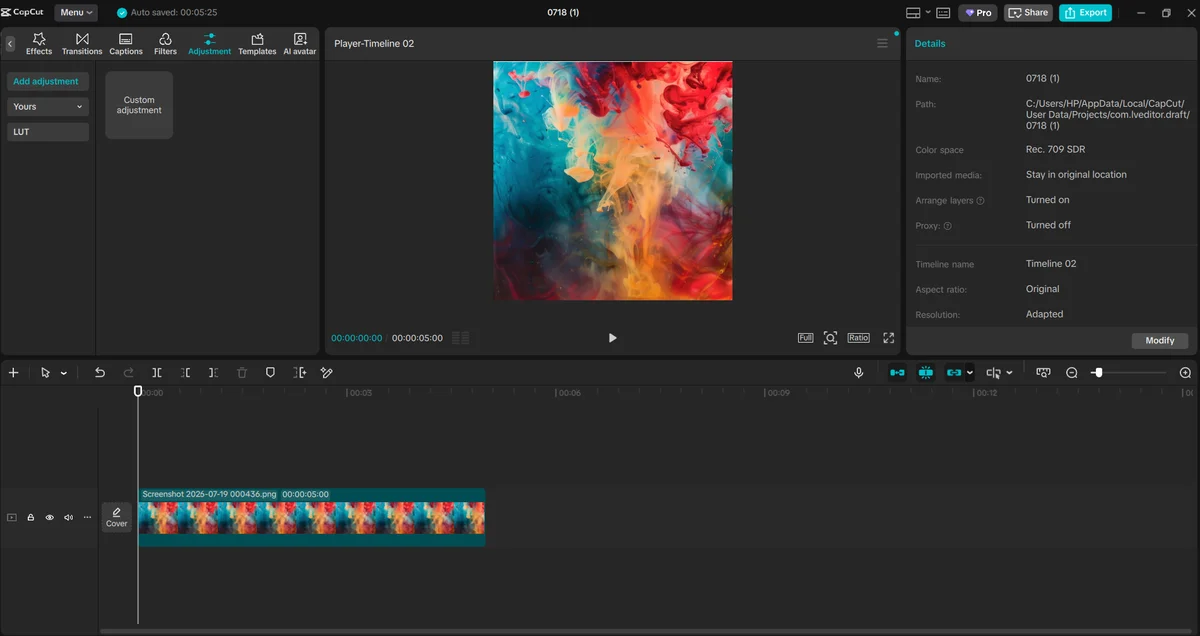
CapCut for Windows is a must-have app for you if you are tired of using a small mobile screen. It is always preferred to edit video on PC due to its unlimited features and simple interface. Moreover, the interface of the app is easy to understand and navigate. Every tool and option is available on the front screen, which makes it easily accessible.

04
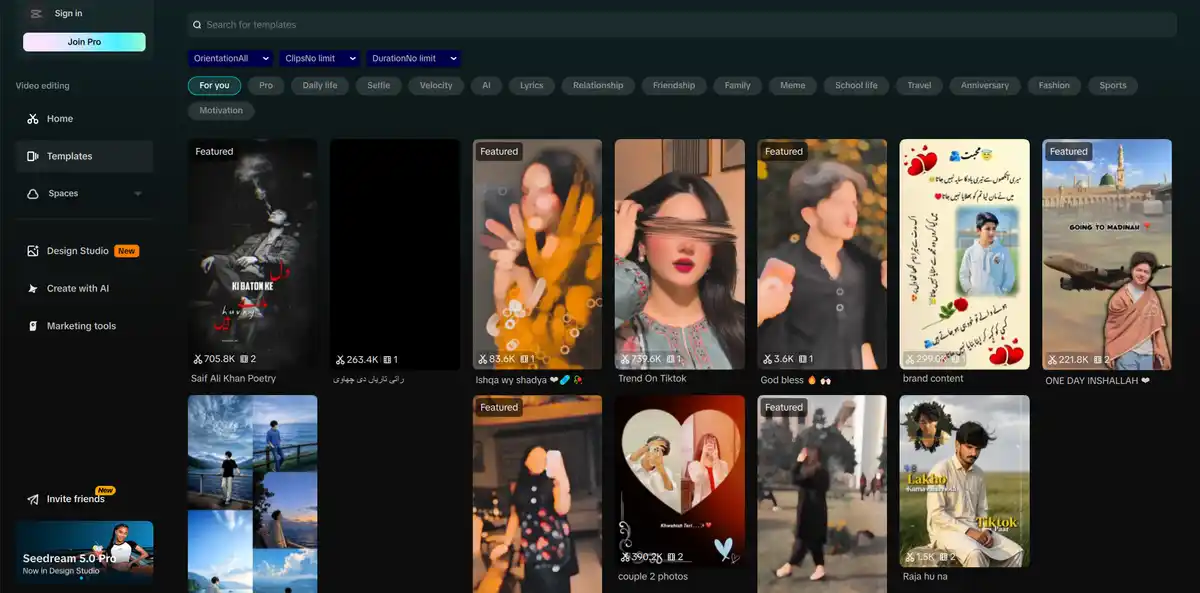
Templates

CapCut comes with various pre-designed templates. You can use all of these templates and make your video editing process more simple and smooth.

CapCut for PC editing templates
CapCut for PC filters and effects
05
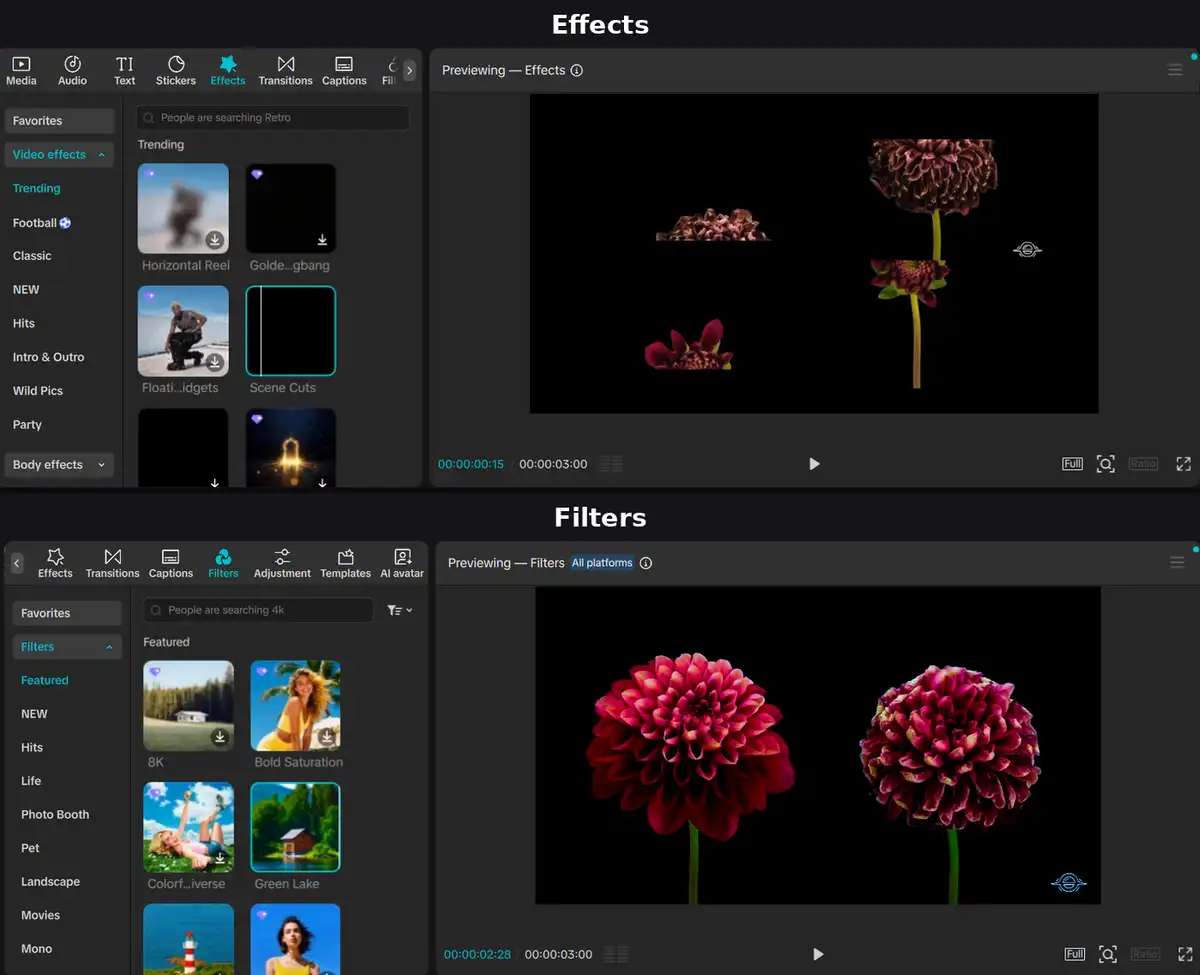
Filters & Effects

What sets this app apart from others is its focus on providing trendy filters, effects, texts, and stickers. It's got all special effects like slow motion or time-lapse, that make your videos stand out from the crowd. Whether you are making a Vlog, tutorial, promo, video, or anything else this app has some amazing features that go perfectly with your video style.

06
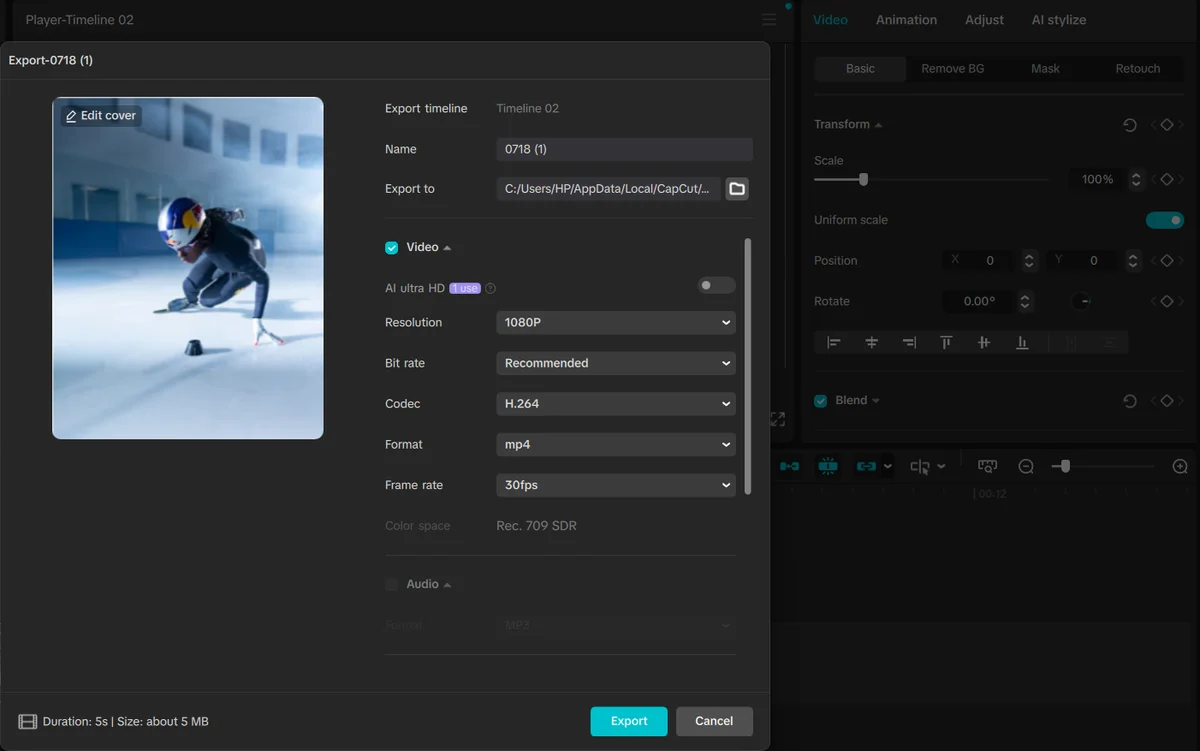
Export and Sharing

After you are done editing, CapCut allows you to share directly to other social media platforms. You can download it to storage or share it with your video editing social accounts on Instagram, Facebook, TikTok, or Youtube for time efficiency.

CapCut for PC export and sharing

Download CapCut for PC

Download the latest version of CapCut for Windows for free and enjoy watermark-free editing with advanced features. Click below to begin your download.

CapCut icon
100% Safe & Watermark Free
Latest Version — 6.5.0
Older Versions
Version Date Download
6.5.0

How to Install CapCut App on Windows?

There is great news for you related to downloading the CapCut editing app on Windows. Just like an Android mobile device, downloading this app on Windows is also super easy and quick. You don't need to make any extra effort to install and use this app.

First of all, you should click the above Download button.

After you click on the button, an exe file will quickly download on your device.

Now, click on it and follow the prompts, then you will find that the app will start installing just after a few seconds.

CapCut on PC will take some time to install.

After completion of installation, you should open the app and start your first video editing.

Final Words

No matter if you love editing or are a professional video editor, you know how important it is to have a professional video editing app on your computer, right? So, for this purpose, developers launch CapCut for computers to enhance the video editing journey of every editor.

So, now, if you are curious to install this app and enjoy editing, then follow the above guide to get the app and start editing.

FAQs
Is the CapCut video editing app free to download?
Of course! You can download this app free on your computer, and core editing tools and watermark-free exports are included at no cost. A few advanced AI and cloud-storage features are gated behind an optional Pro subscription.
Does CapCut for PC offer an option for offline editing?
Yes! After you download this amazing video editing app on your computer, then you can enjoy offline editing anytime.
Do I need BlueStacks to get CapCut on PC?
No, you don't need BlueStacks to get CapCut on your PC. The app has an official desktop version, which ensures top-notch visual editing. This saves you from the grinding of downloading an Android emulator to launch CapCut APK.
Can I save visuals without a watermark on CapCut for PC?
Yes, CapCut allows you to save multimedia files on your computer without showcasing its watermark or logo. This option is available on both free and paid versions.
Is CapCut good for PC editing?
CapCut is an amazing video editor with advanced features comparable to those of other expensive software. The best part is that it's free to use on a PC. You rarely need to upgrade to the paid version. If you don't have a Windows computer, you may also try out CapCut for Mac.
What file formats are supported by CapCut for PC?
CapCut supports multiple video and audio formats on PC, including MOV, MP4, MP3, M4A, and more.